

How Does Glow-in-the-Dark Sticker Paper Work?
2026-10-16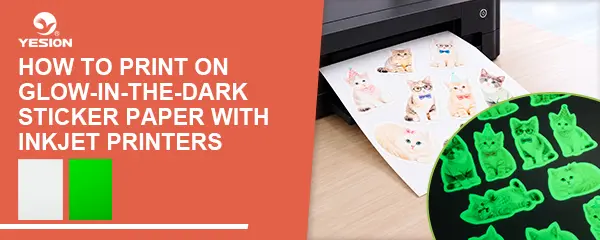
Glow-in-the-dark sticker paper allows businesses, print shops and DIY users to create custom luminous labels, decorative stickers and craft designs. For the best results, it is important to check printer compatibility, prepare the artwork correctly and use suitable printing settings. This guide explains how to print on glow-in-the-dark sticker paper with an inkjet printer, from preparation to cutting and quality inspection.
How to Print on Glow-in-the-Dark Sticker Paper
1. Check Printer and Sticker Paper Compatibility
Before printing, confirm that the material is designed for inkjet printing. Not every glow-in-the-dark sticker material supports the same printer types or ink systems.
Check the product specifications for compatible printers, supported ink types and recommended print settings. If you are using a new material, print a small test sheet first. For commercial users, testing several sheets helps evaluate print quality, adhesive performance and production consistency before placing a larger order.
Explore our glow-in-the-dark sticker material to review suitable options for custom printing projects.
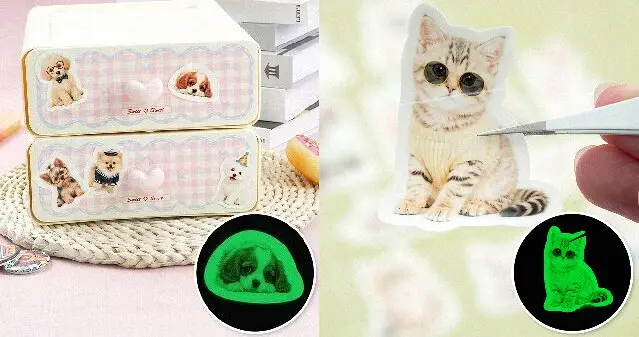
glow in dark stickers
2. Prepare Your Artwork
Create your design using software such as Adobe Illustrator, Photoshop or other graphics applications compatible with your workflow.
For clearer results:
- Use high-resolution images and sharp text.
- Keep important details away from cutting lines.
- Choose colors and contrast appropriate for the intended design.
- Leave sufficient spacing between individual stickers.
- Consider how printed ink coverage may affect the visible glow effect.
For logos, product labels and promotional stickers, check the artwork at its actual print size before production. Small text and thin lines may become difficult to read when printed or cut.
3. Select the Correct Printer Settings
Load the sticker paper according to the printer manufacturer’s instructions. Confirm the printable side before starting, as printing on the wrong side may lead to poor ink adhesion or unsatisfactory results.
In the printer settings, select the media type that most closely matches the material manufacturer’s recommendations. Adjust print quality and resolution according to the artwork and test results. Avoid assuming that the highest-quality setting is always the best choice for every sticker material.
Use the recommended ink system and allow the ink to dry fully before handling the printed sheet. Excessive ink coverage may cause smearing or uneven drying, depending on the material and printer combination.
4. Print, Dry and Cut the Stickers
Print a test design and inspect the colors, sharpness and ink coverage. If the result is satisfactory, proceed with the full design.
After printing, place the sheet on a clean, flat surface and follow the material supplier’s drying recommendations. Do not stack freshly printed sheets if the ink may transfer between surfaces.
Once dry, cut the stickers using scissors, a craft knife or a compatible cutting plotter. For businesses producing multiple designs, consistent cutting margins and accurate registration help improve the finished appearance and reduce material waste.
Before packing, inspect the stickers for smudges, incomplete printing, lifting edges and cutting errors.
5. Common Printing Problems and Solutions
Ink smearing: Check whether the material is inkjet-compatible, reduce excessive ink coverage if necessary and allow more drying time.
Poor print quality: Confirm that the correct printable side is facing the print head, review the media setting and check the printer nozzles.
Uneven colors: Check ink levels, print-head condition, artwork color settings and the consistency of the material.
Weak visible glow: The glow effect depends on the material, light exposure, printed coverage and viewing conditions. Compare printed and unprinted areas under the same lighting conditions instead of judging the result from print color alone.
Stickers lifting at the edges: Check the surface condition, adhesive suitability and cutting method. Test adhesion on the intended application surface before mass production.
6. Quality Checks for Commercial Printing
For print shops, distributors and product manufacturers, a successful test should evaluate more than appearance. Check print clarity, drying time, cutting accuracy, adhesion and glow performance under consistent conditions.
Record the printer model, ink type, media settings and drying time used during testing. This information helps establish a repeatable production process and makes it easier to compare different materials.
When sourcing inkjet printable sticker paper, request product specifications and samples before confirming a bulk order. Compatibility testing is especially important when changing suppliers or introducing a new printer.
Printing on glow-in-the-dark sticker paper requires compatible materials, appropriate printer settings, well-prepared artwork and sufficient drying time. For commercial applications, sample testing and consistent quality checks help reduce production problems and support repeatable results.
YESION supplies printable sticker materials for different printing and creative applications. If you are a wholesaler, distributor or printing business, contact our team to discuss material specifications, sample testing and bulk purchasing options for your project.
Contact info
Email:[email protected]
Phone:+86-021-64950453
Mobile:+86-18001836806
WhatsApp:+86-18001836806
Related:
How Does Glow-in-the-Dark Sticker Paper Work?
What Is Glow-in-the-Dark Sticker Paper?
